Support & Setup Guide
If you run into setup issues or have questions about connections, our team can help. Email tyler@cybernoweducation.com.
How to Hook Up Your Solace
- 1
Connect Continuous Power
Plug the braided USB-C cable into the Solace and into your TV’s USB slot—or a laptop USB-A adapter—for automatic power.
- 2
Plug in the Audio Source
Connect the Digital Optical cable to your TV's "Optical Out," then into the Solace port labeled "Input." For PCs and tablets, use USB-C or 3.5mm as your setup allows.
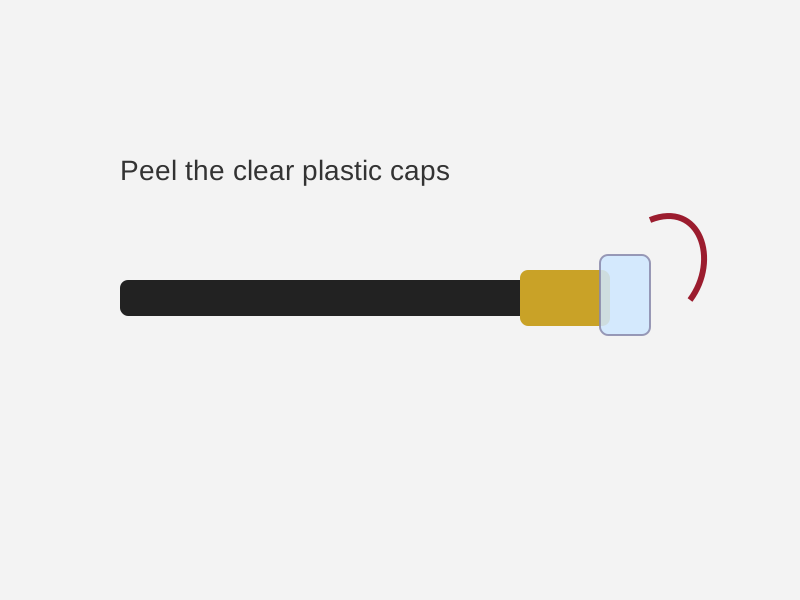
Important: Gently peel the tiny clear plastic protective caps from both optical cable tips before inserting.
- 3
Attach Your Headphones
Insert wired headphones, earbuds, or a gaming/work headset into the front 3.5mm jack labeled "Output."
- 4
Control Your Volume
Turn the physical wheel to set speech volume—no menus, no pairing screens.
Hardware Recovery Tool
If sound stops after an interrupted profile update, use this browser tool to restore factory defaults, then re-sync your custom map from Account.
Hardware Recovery Tool
- Connect your Solace box directly to this computer using your USB-C data cable.
- Click the button below to initiate the local sync.
- Choose your device from the browser's hardware pop-up menu.
This browser does not support WebSerial. Use Chrome, Edge, or Opera.
Silencing the Subtitles – Guides
- Why flat-screen TVs sound so bad – Downward-firing speakers muddy dialogue; optical + Solace restores speech consonants.
- Bluetooth vs Wired – Wireless links add lip-sync delay for movies, briefings, and competitive games. Solace stays wired and latency-free.